Follow this tutorial to create Scheduled Tasks (Cron Jobs) in Plesk.
1. Log in to your Plesk account.
2. Click on the Pull icon in the right sidebar and choose Scheduled Tasks.
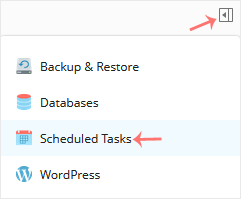
3. Under Scheduled Tasks, click on Add Task.

4. Enter the following details:
Webspace: Choose the appropriate domain from the drop-down menu in case of multiple domains.
Task Type: Choose the appropriate option as per your needs.
Command/Script Path: Depend on your choice. If you choose Task type to Run a command, then enter a command.
Run: To run your command every day, choose Daily and enter time and hour.
Description: Type the description of the task.
Notify: Select Errors only or leave it as it is.

5. Click OK.
Your task will be scheduled. Click on Run Now to verify the task.
A tutorial on how to access the Plesk Control Panel. After you place an...
1. Log in to your Plesk account. 2. Click on Files from the Sidebar Menu....
Follow these steps to change your Plesk account password. 1. Log in to...
Follow these steps to reset your Plesk account password. 1. Open your...
Follow these steps to change your Plesk contact email address. 1. Log...