
To create a new email account, perform the following steps:
1. Log in to your DirectAdmin Account.
2. In the E-mail Manager section, click on E-mail Accounts or type E-mail Accounts in the navigation filter box, and the option will appear. Click on it.
3. Click on Create Account. You will find it on the top right.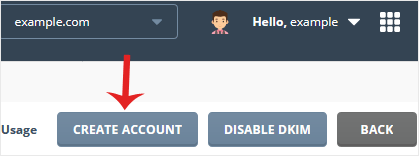
4. Enter an email username such as my-first-email and password. You can click on the Generate Random Password icon to generate one.
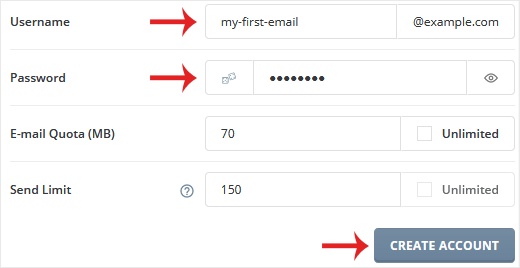
5. Change the email quota and Send Limit or leave them as they are. Then click on Create Account.
Please, copy the newly-created email account details to a safe place.
İlgili diğer dökümanlar
How to Rename an Email Address in DirectAdmin
1. Log in to your DirectAdmin Account. 2. In the E-mail Manager section,...
How to Change the Email Sending Limit in DirectAdmin
If you have set the email sending limit while creating your email account,...
How to Change the Email Account Disk's Quota in DirectAdmin
If your email disk quota has been reached and you want to increase or modify...
How to Change an Email Account's Password in DirectAdmin
You can change your email password in DirectAdmin through the following...
How to Access Your Email From DirectAdmin
You can access your email account from DirectAdmin using two methods. Method...